Basecamp 5 shipped in May, and with it a new calendar. Leading the design was one of my biggest projects this year, and a fun one to work on with Joseph. Here's a rundown of what's new and how it works.
The redesign
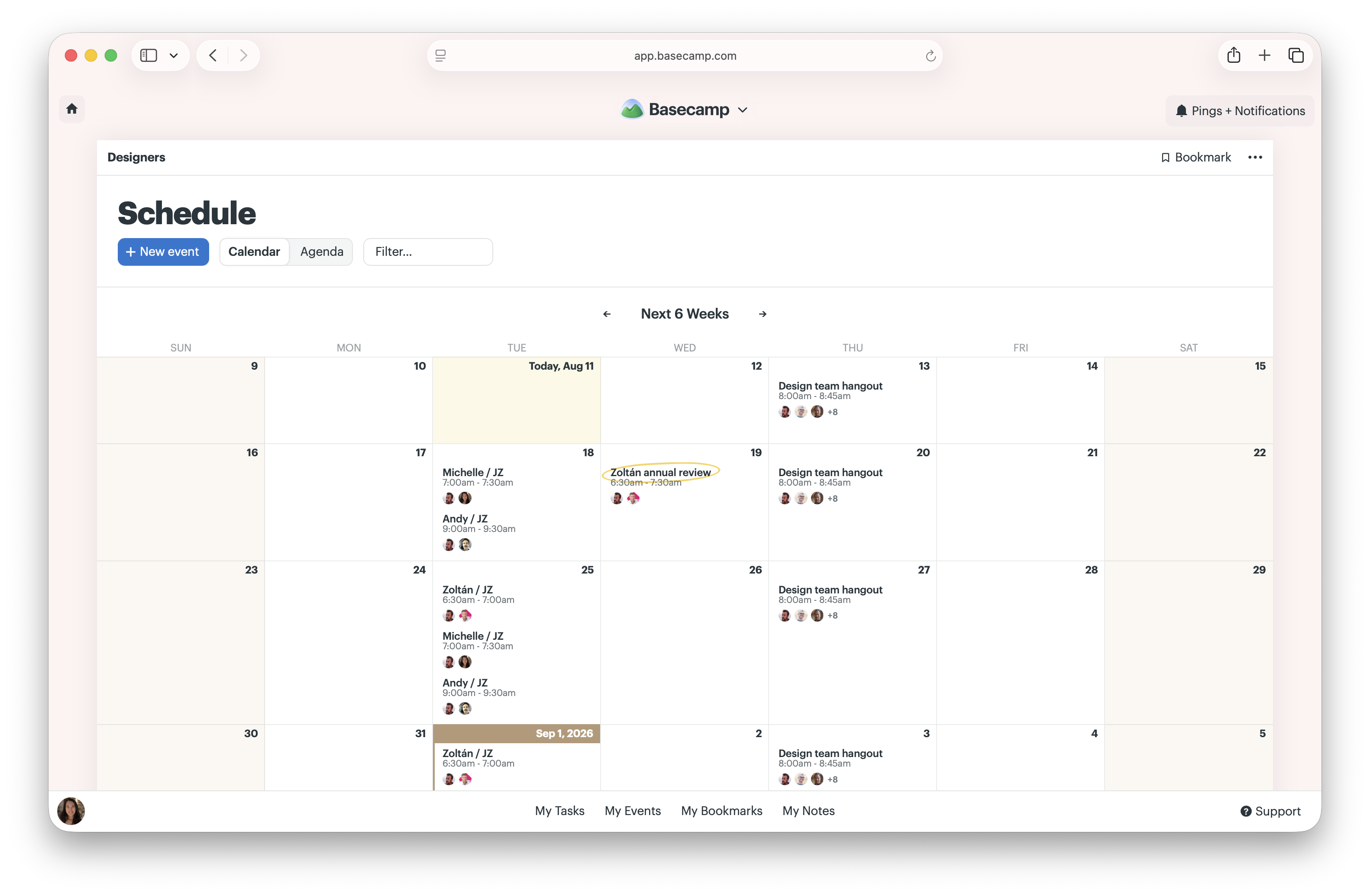
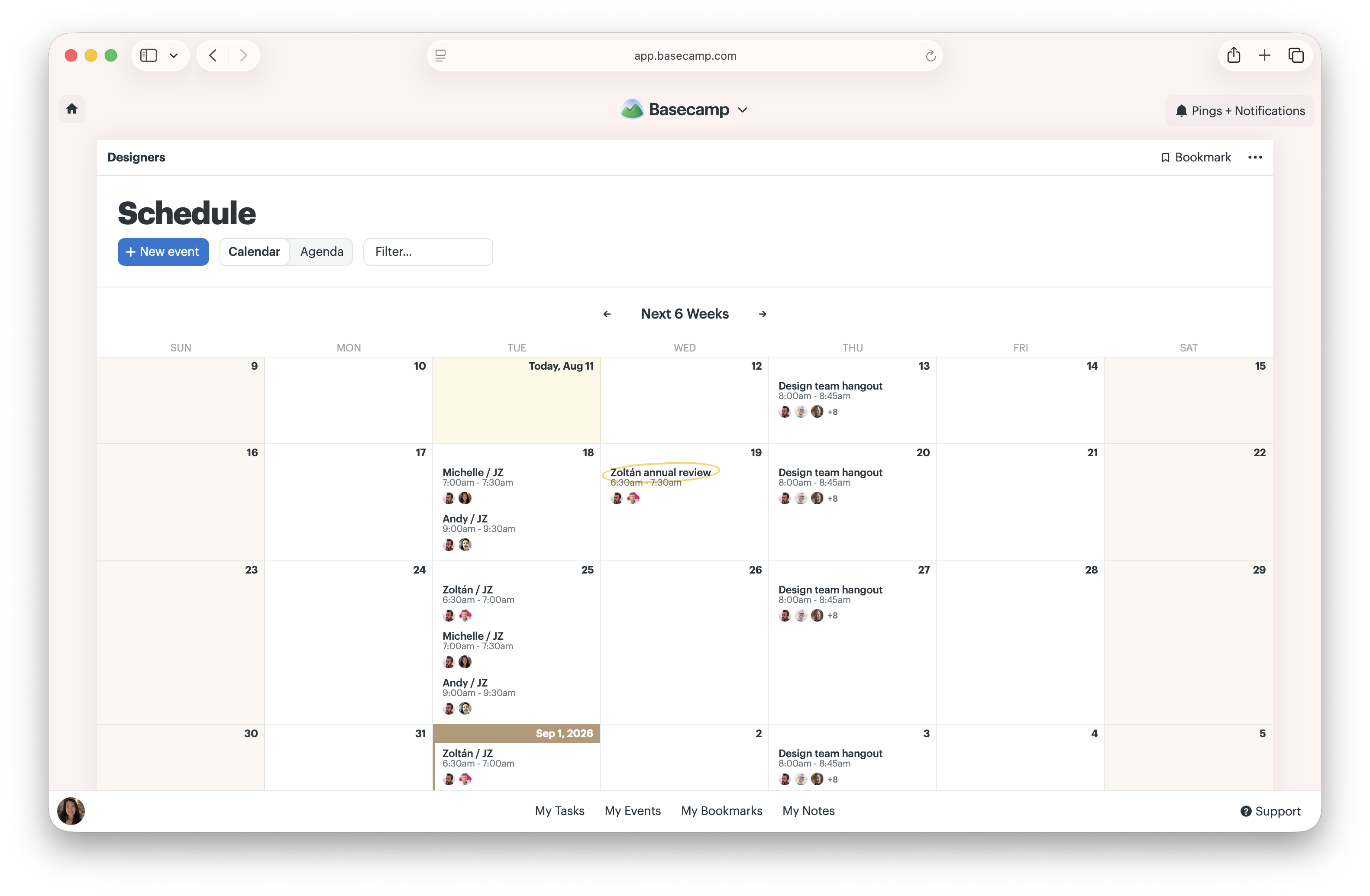
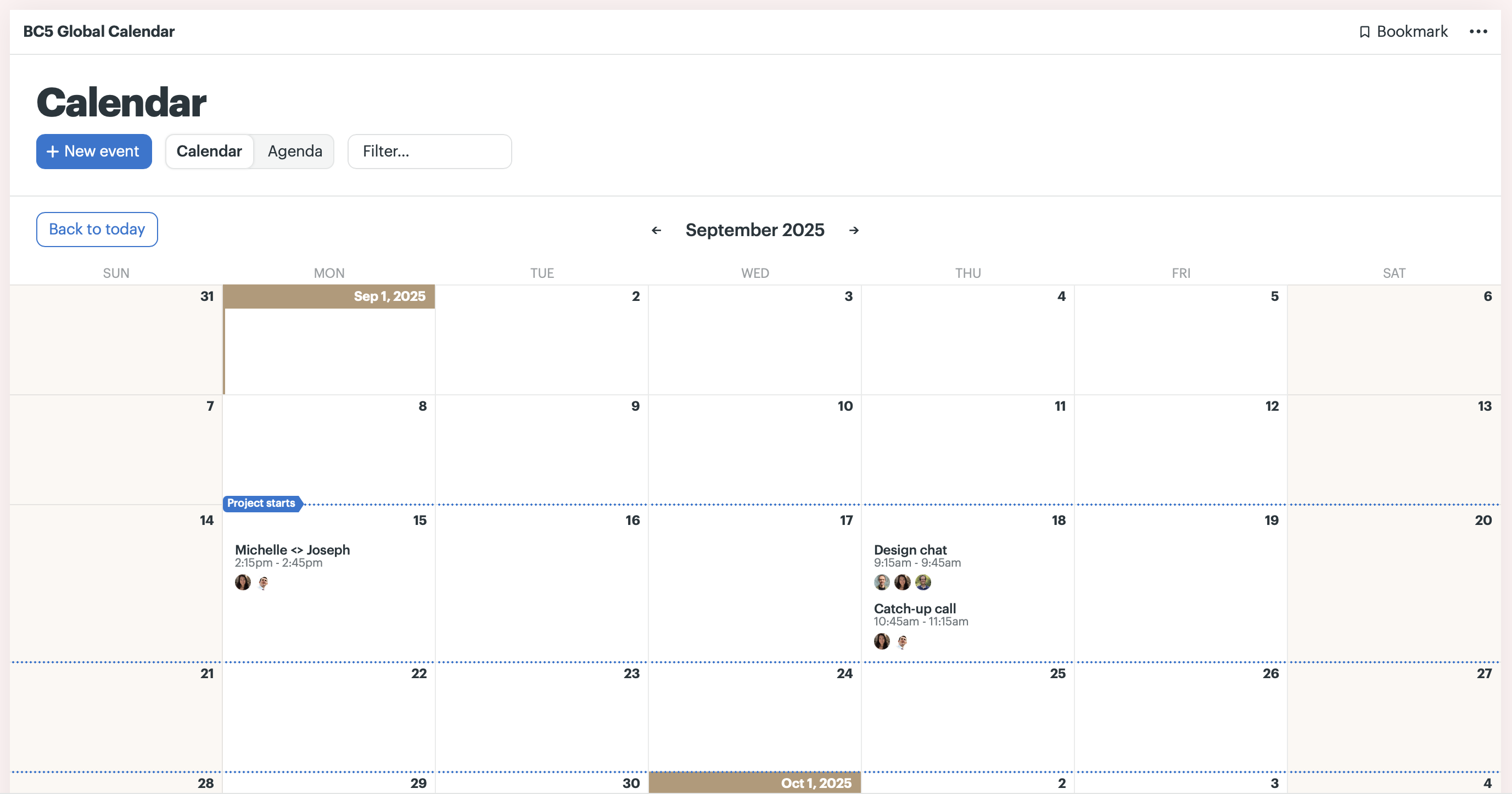
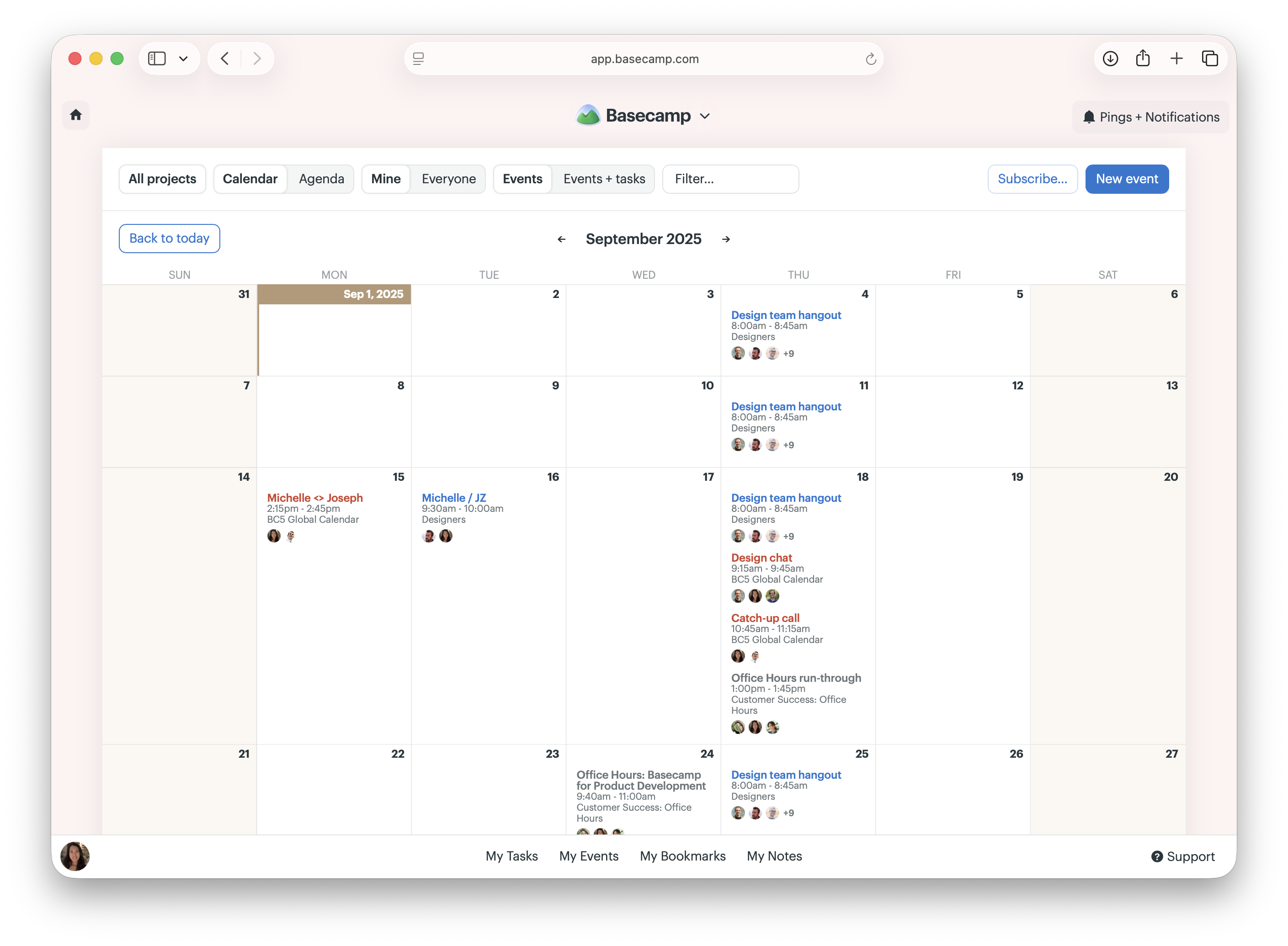
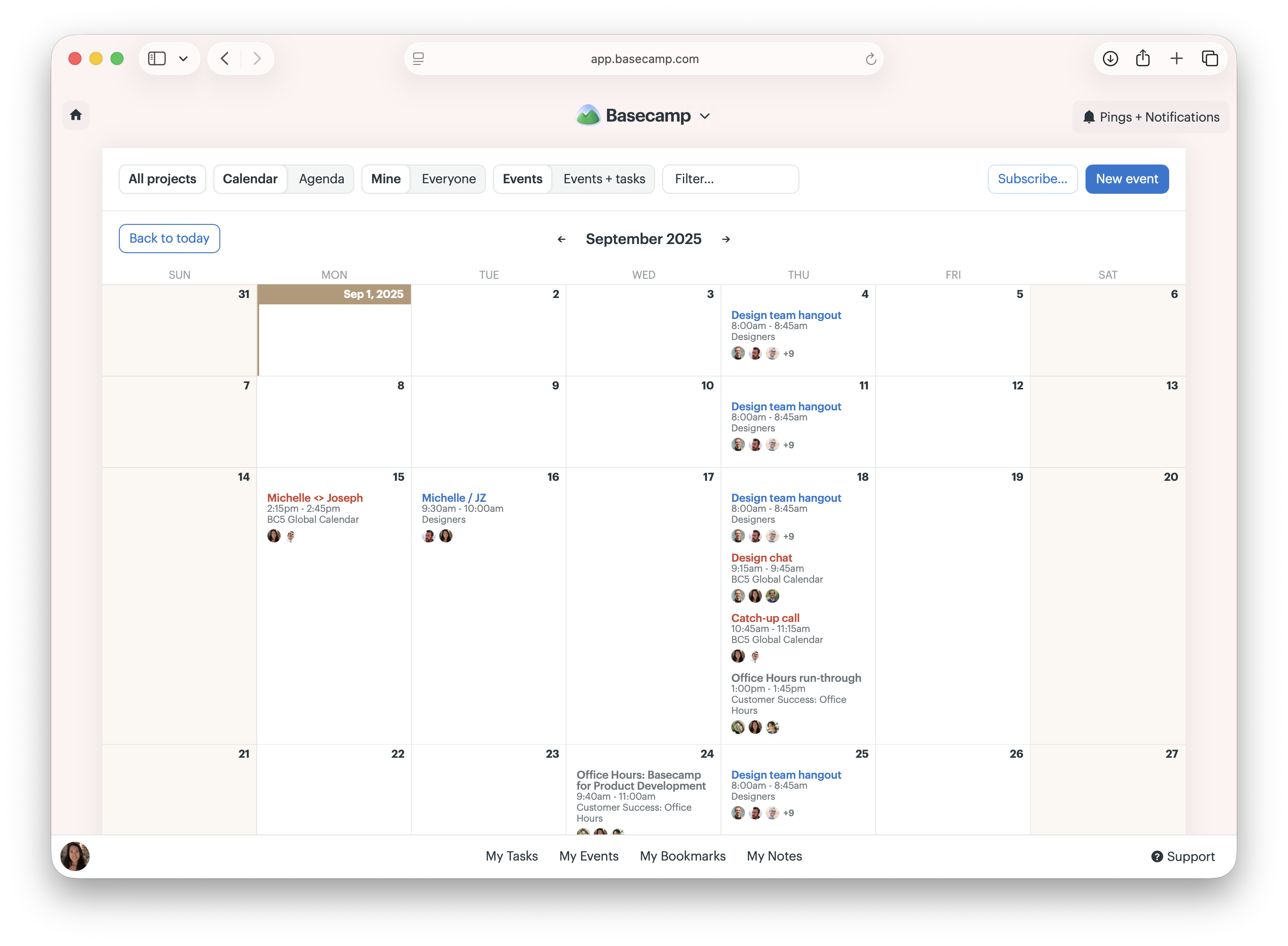
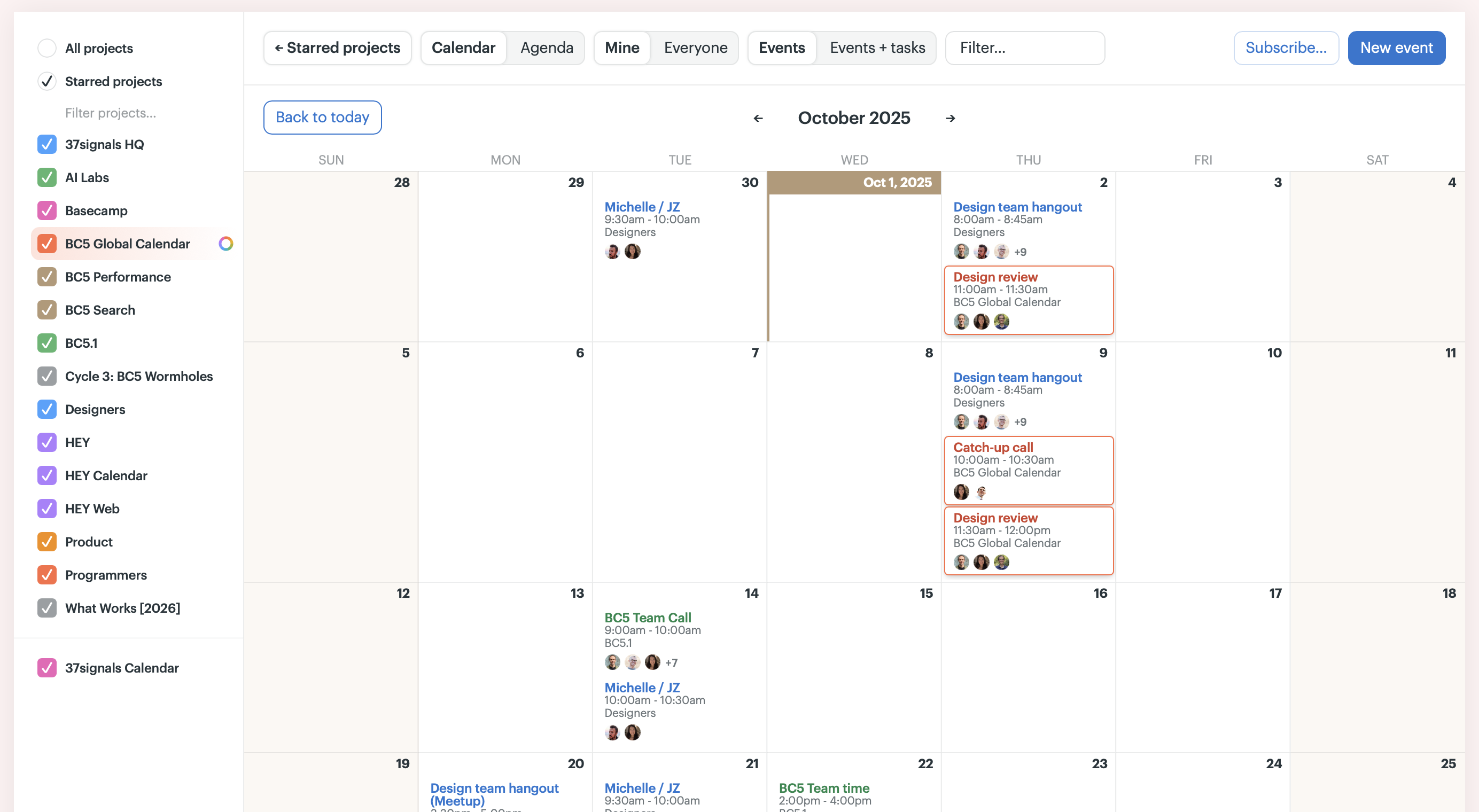
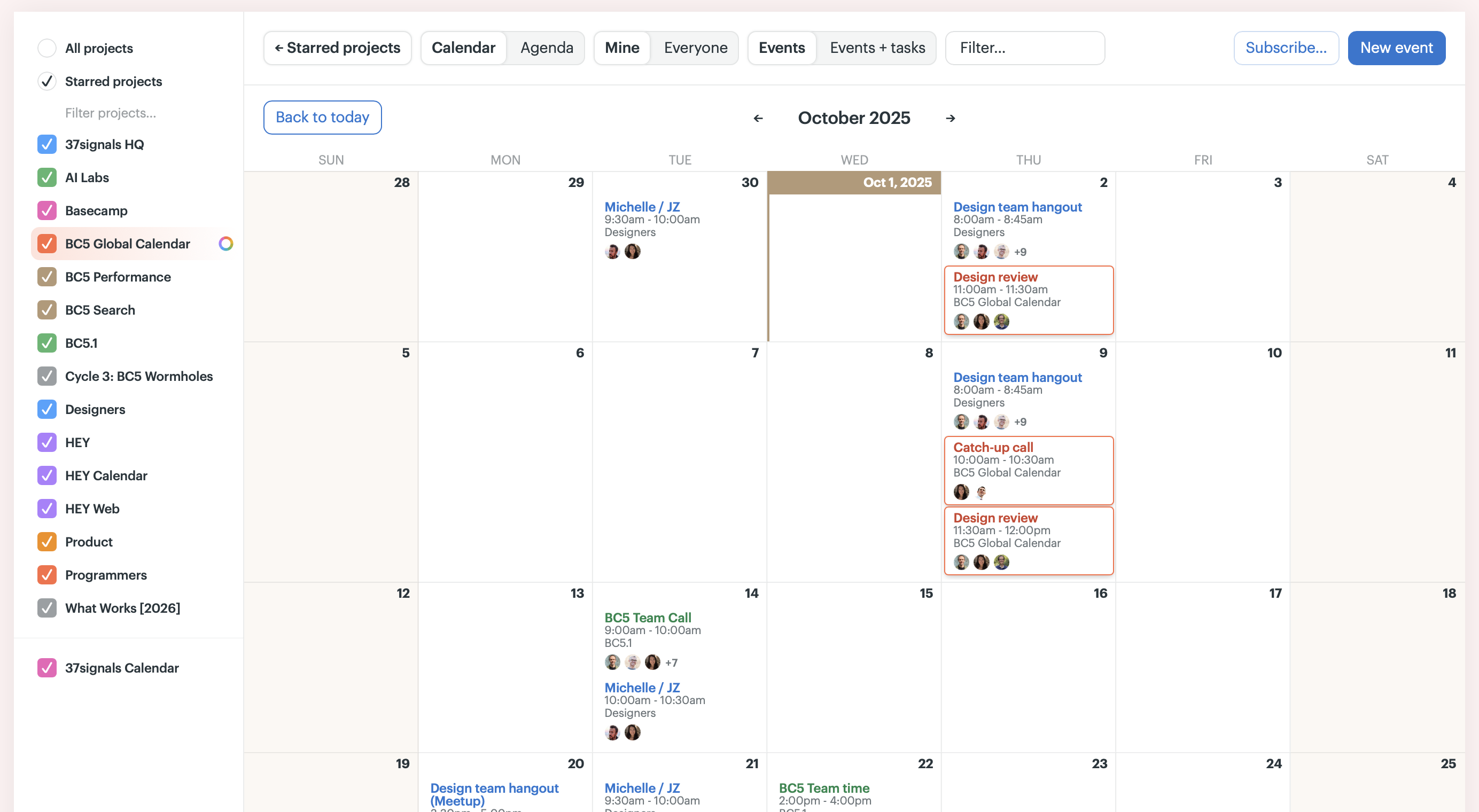
We transitioned from BC4's dot-grid calendar to a full calendar in BC5. We now show the next six weeks, with the current week in the first row.
Navigation
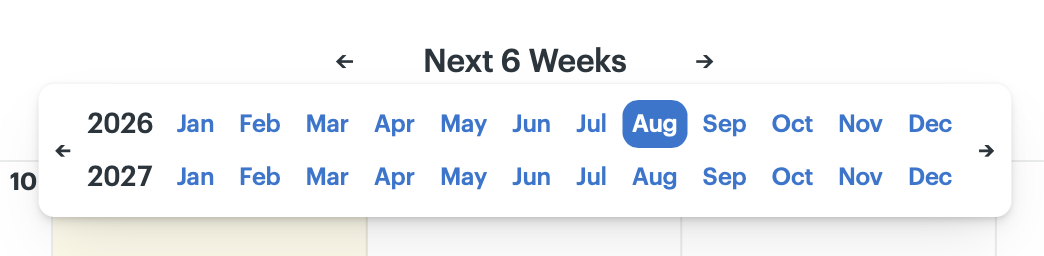
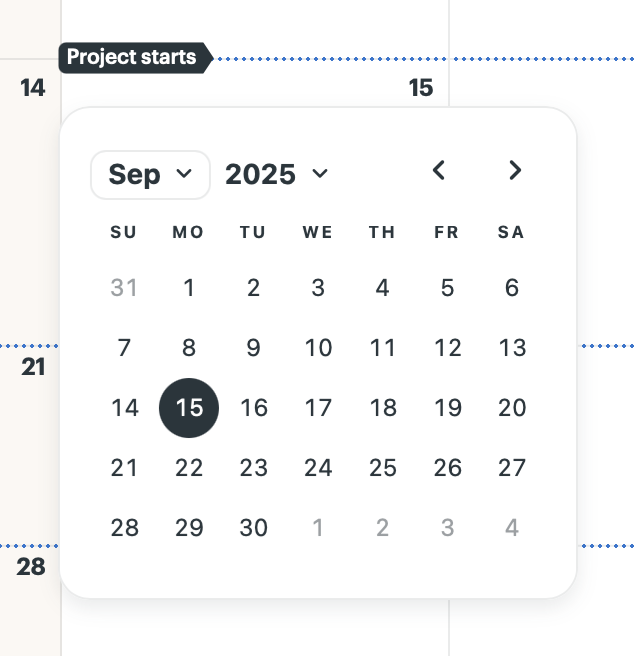
Scroll down to see future weeks. Click the arrows or use the ← → keys to jump back or forward a month. Want to jump somewhere specific? Click Next 6 Weeks to open the month picker. This was something we loved in Basecamp 2 and brought over to Basecamp 5.
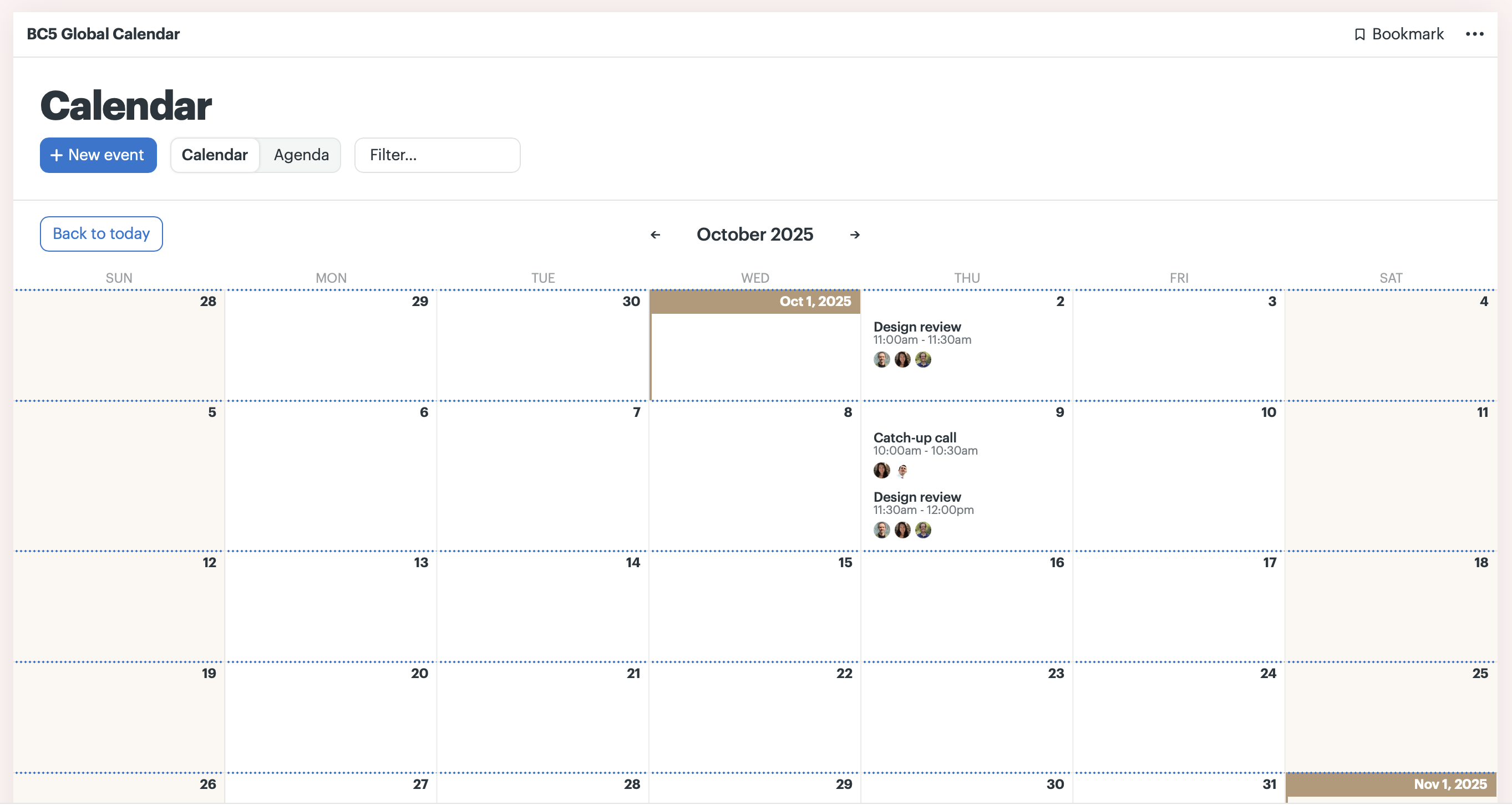
If you wander away from the current week, a Back to today button appears on the left (or use the keyboard shortcut D) to bring you right back.
Circle events
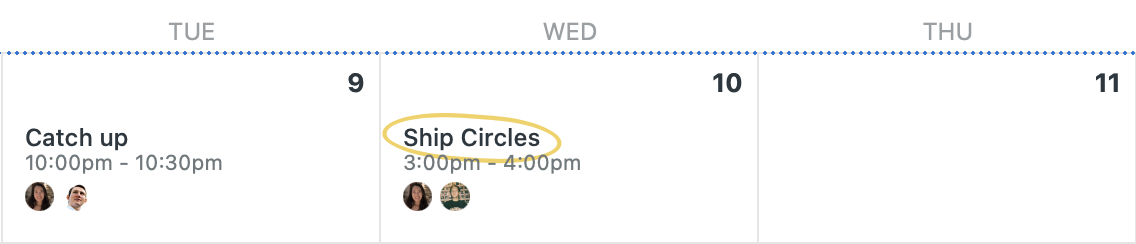
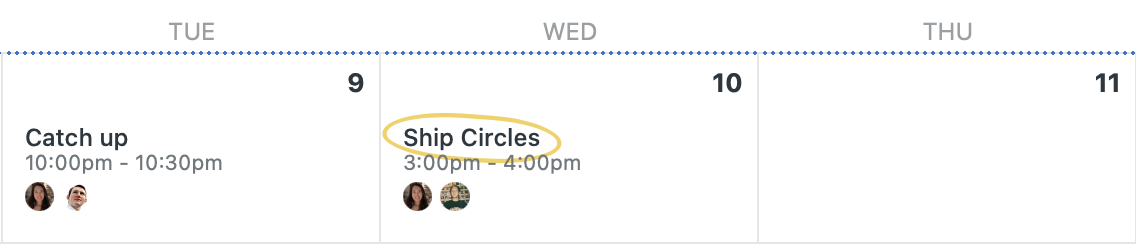
Have a big milestone or important moment you want to highlight? You can circle the event to highlight it for everyone.
Project calendar
We now show project start and end dates right on the calendar. Need to change them? Just click and pick a new date.
Like to plan ahead? Rather than landing on the current week, we scroll to the month your next event is in. Helpful if, say, it's August and we're planning events for our next company meet-up in October.
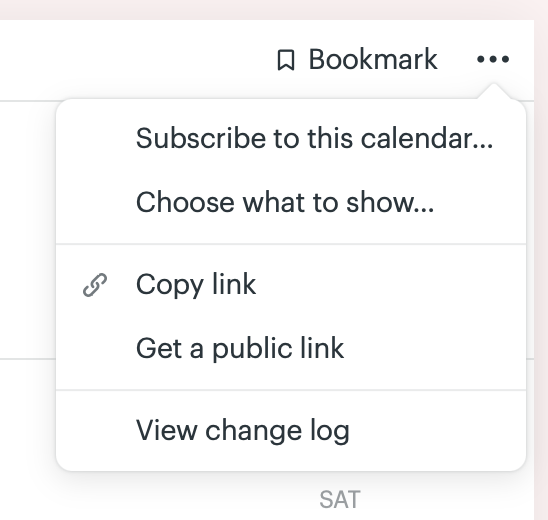
In the ••• menu in the top-right, you'll now find links to archived events and the change log. You can also choose what appears on the calendar: events only, or events and assignments. That setting applies to everyone on the project.
Global calendar
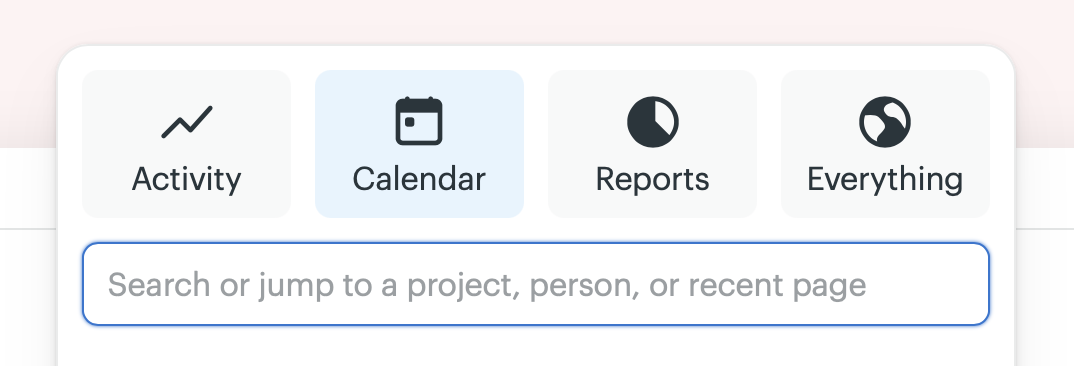
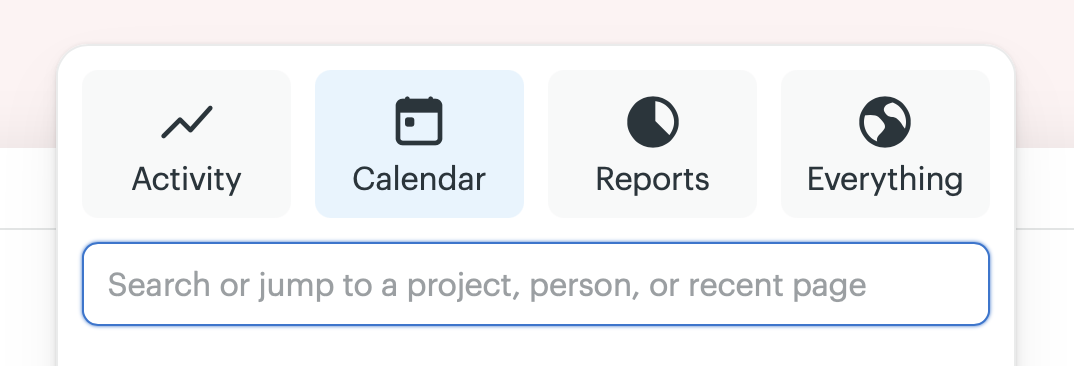
In BC4, My Schedule and the Upcoming Dates report were separate calendars. In BC5, everything comes together in Calendar. You can get to it from the jump menu or use the keyboard shortcut 2 from anywhere in Basecamp.
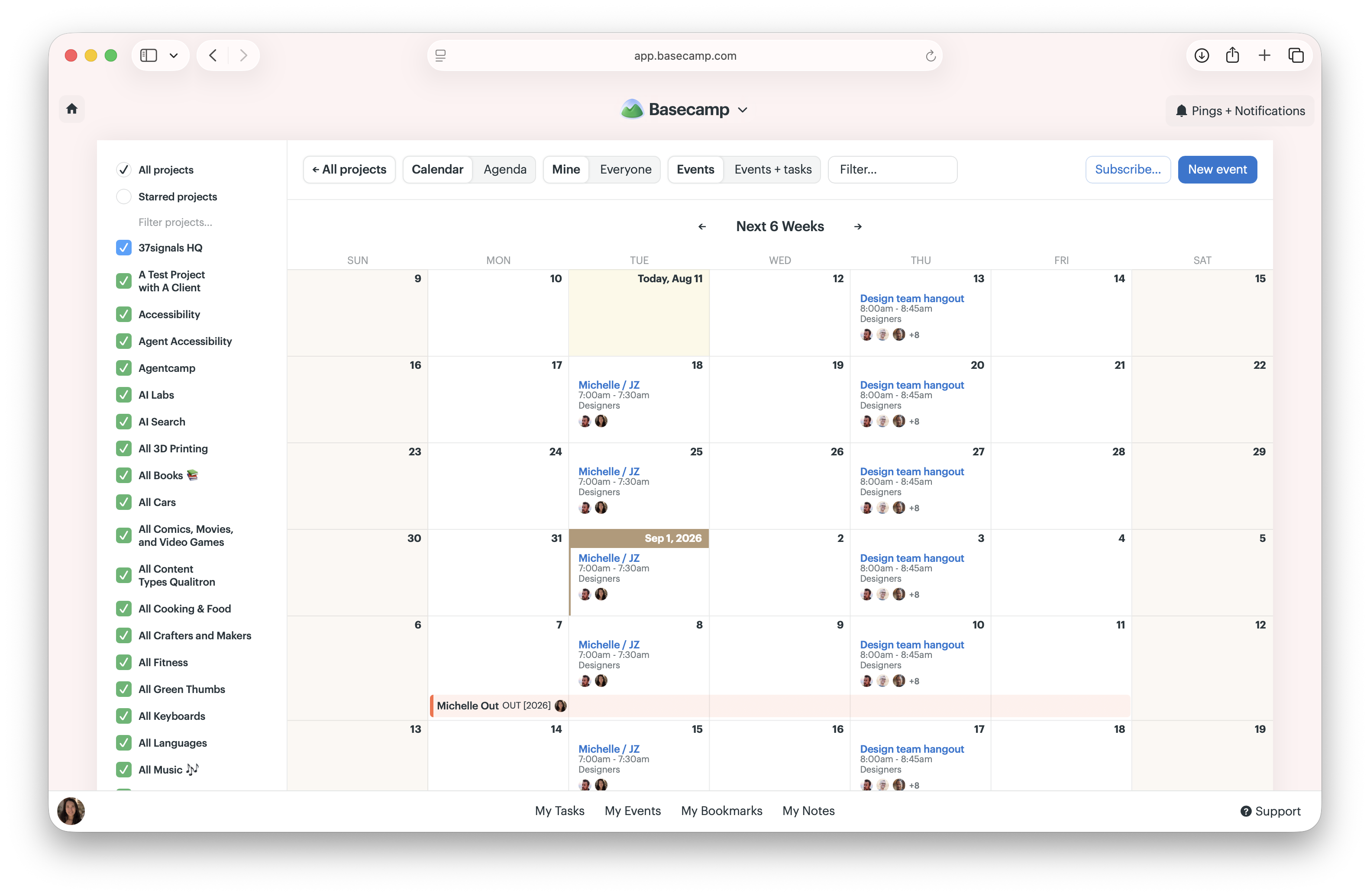
Filters At the top, you'll see filters that let you customize your view. We default to Mine and Events, but it's easy to switch to Everyone and Events + tasks. Your filters are saved, so when you come back, it looks exactly how you left it.
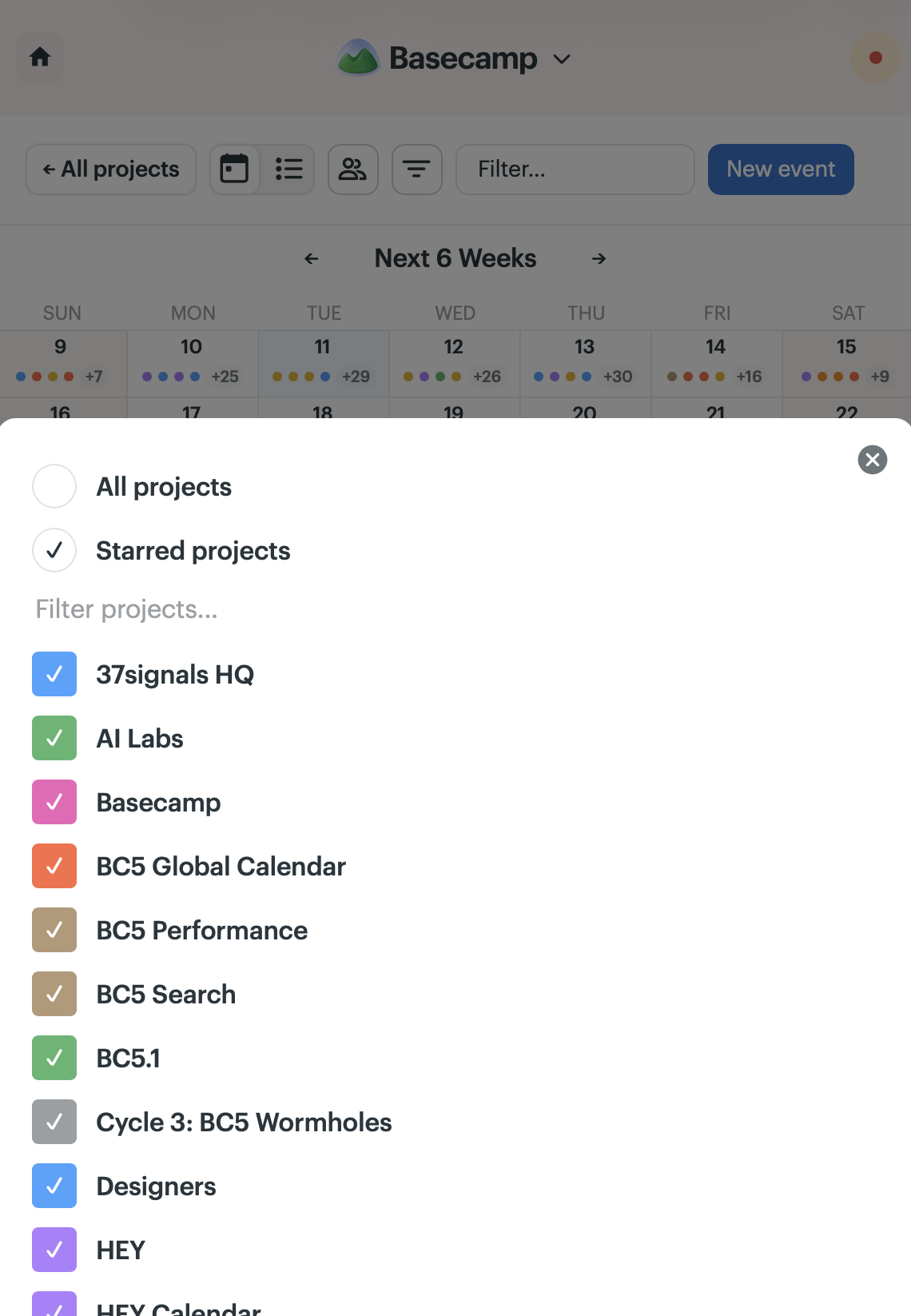
Click All projects in the top-left to open the sidebar. This lists every project you have access to, even ones without the calendar tool enabled, since you may still have to-dos, cards, or steps with due dates.
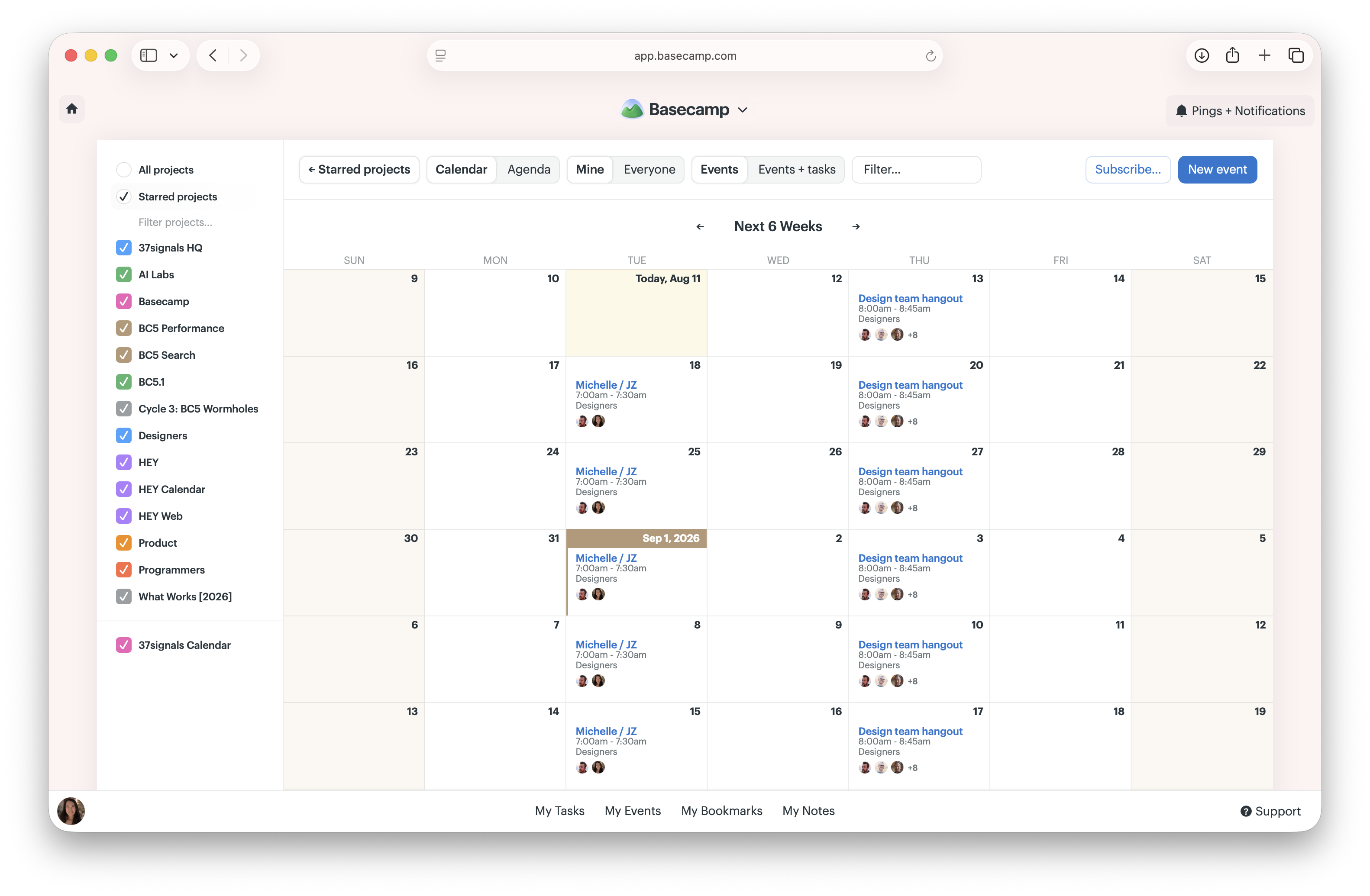
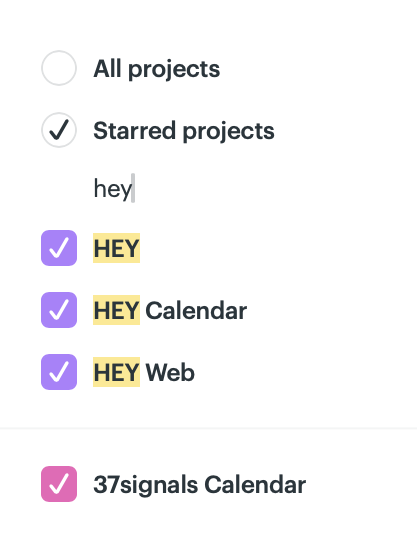
The Starred projects filter makes it easy to focus on what matters most right now. One click could take you from a list of a hundred projects to just the ones you've starred. You can type to narrow the list down too.
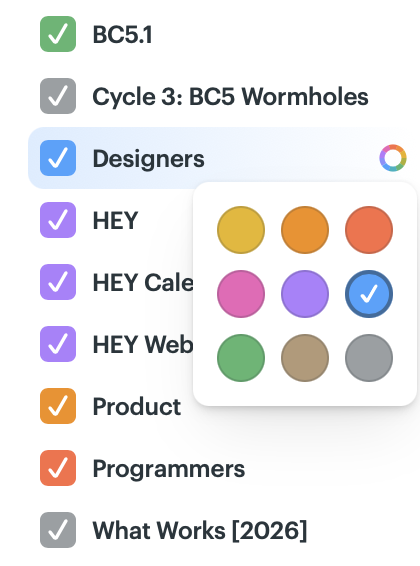
Colors Projects are automatically color-coded on the calendar based on the first letter of the project's name, but you can always change them. Just hover over a project and click the color wheel. This came about after I started setting our HEY projects to purple one by one, and I've left that easter egg in: every project starting with H is purple.
Hover and highlight In the sidebar, hovering over a project highlights all of its events on the calendar. On the calendar itself, hovering over a recurring event highlights all of its occurrences.
The team-wide calendar Not everything belongs to a project. Company holidays, the team's time off, and all-hands. We introduced a new team-wide calendar in BC5, which everyone in the account can see.
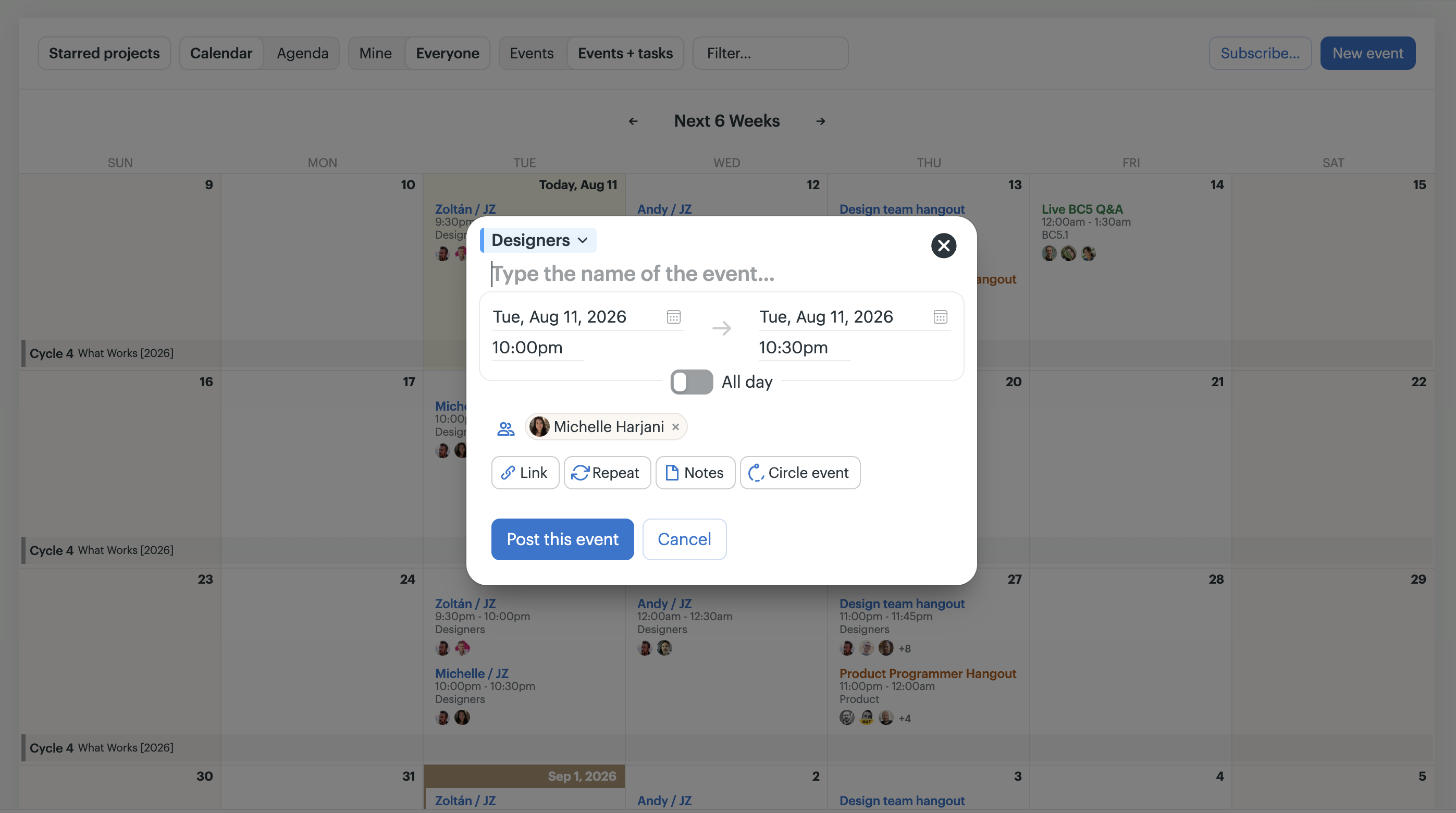
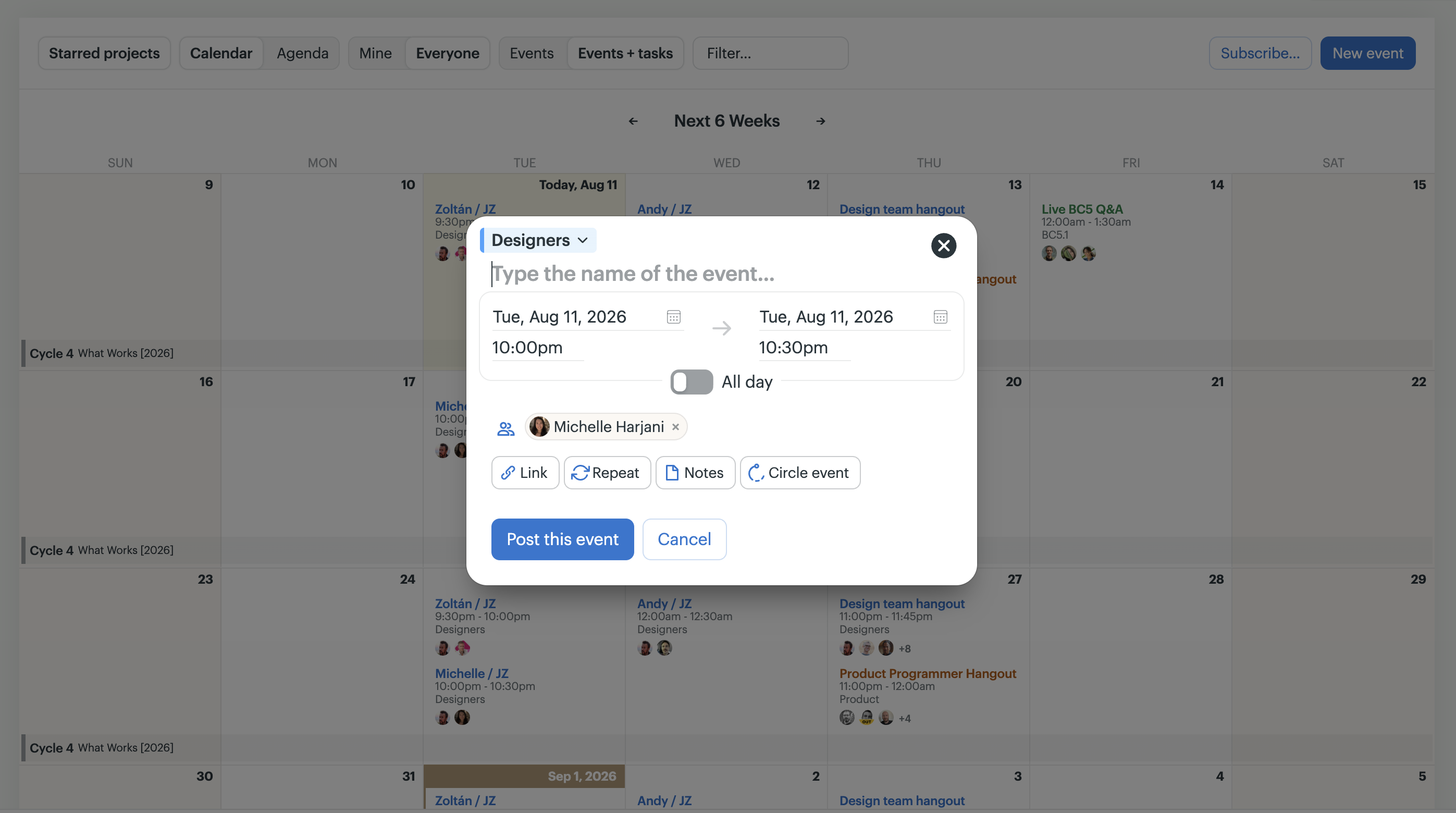
Add events You can add an event by clicking New event (keyboard shortcut: M) or by clicking directly on a day in the calendar. From the global calendar, you can add an event to the team-wide calendar or to any project that has the calendar tool enabled.
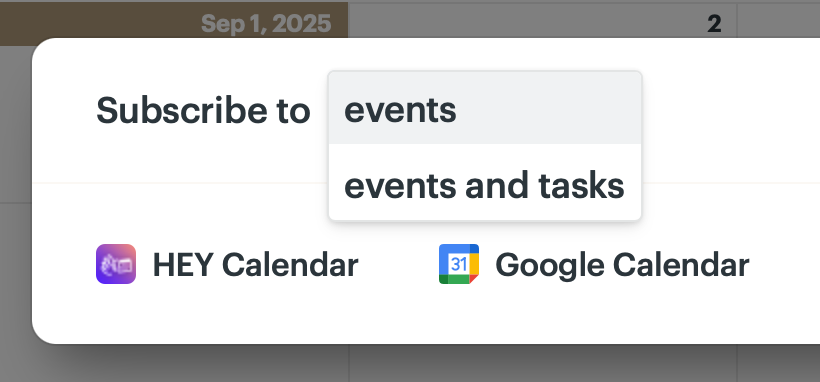
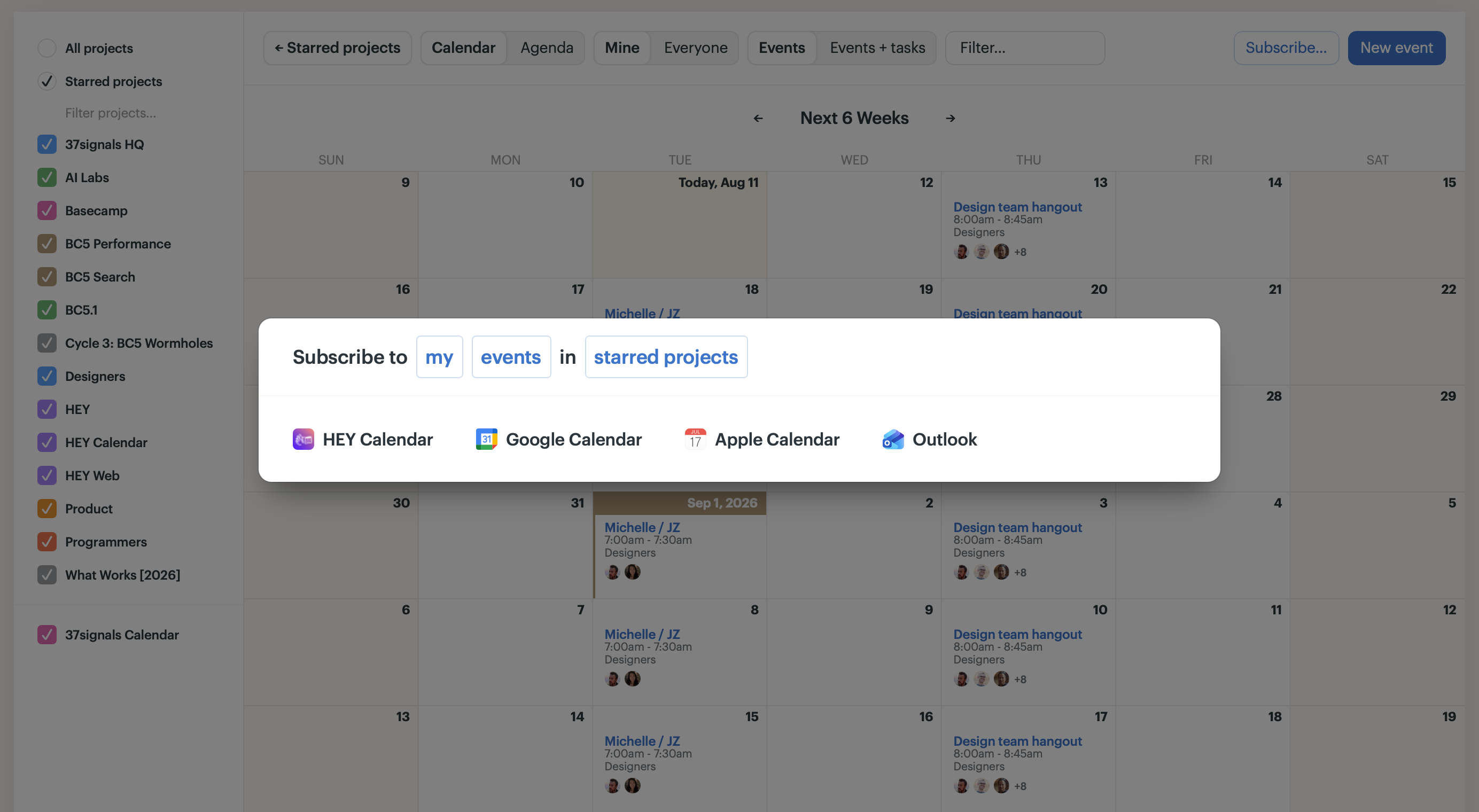
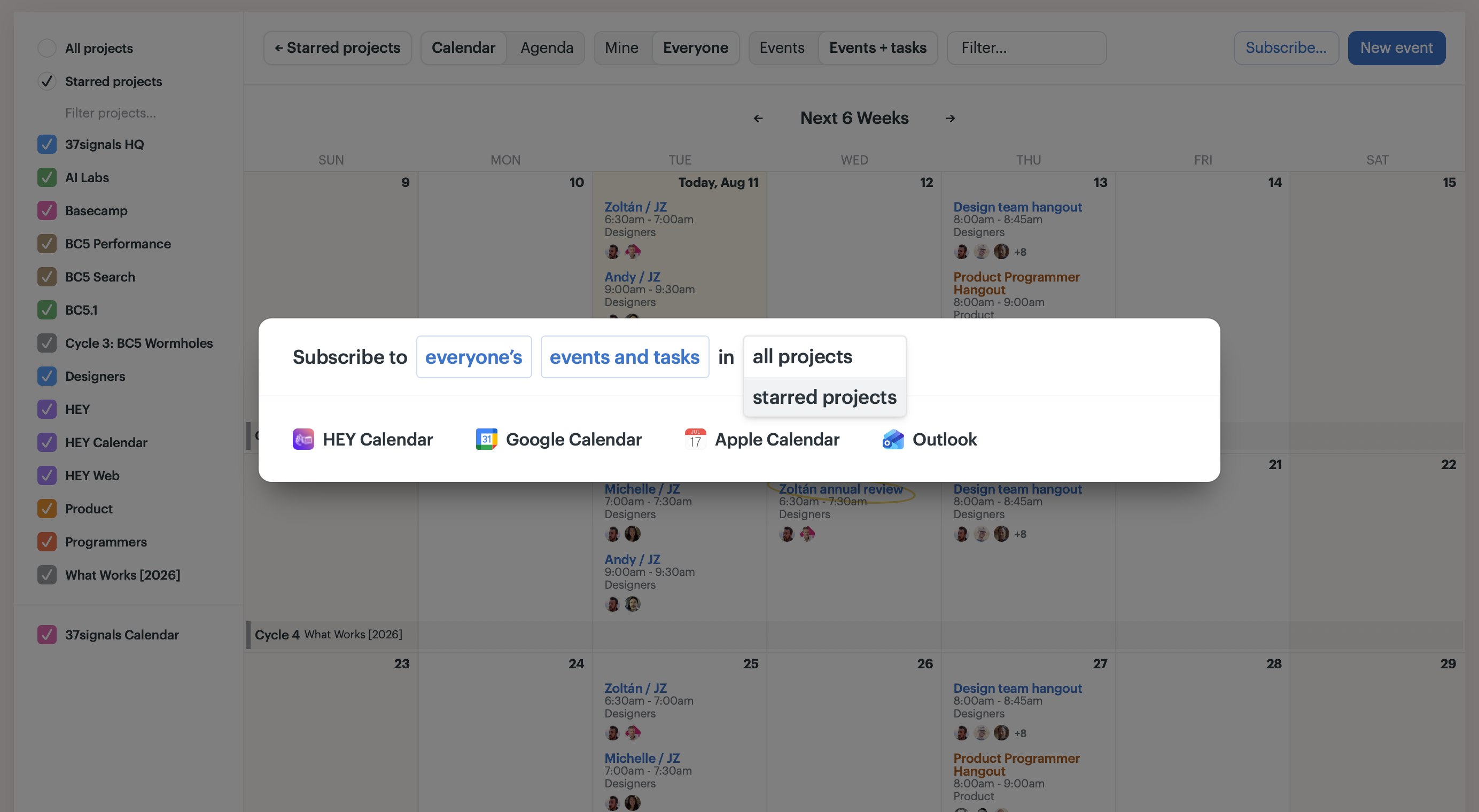
Subscribe Want your Basecamp calendar in your favorite calendar app? Click Subscribe to get the link or download the .ics file. We'll match the filters you've set, but you can also tweak what you subscribe to.
On smaller screens
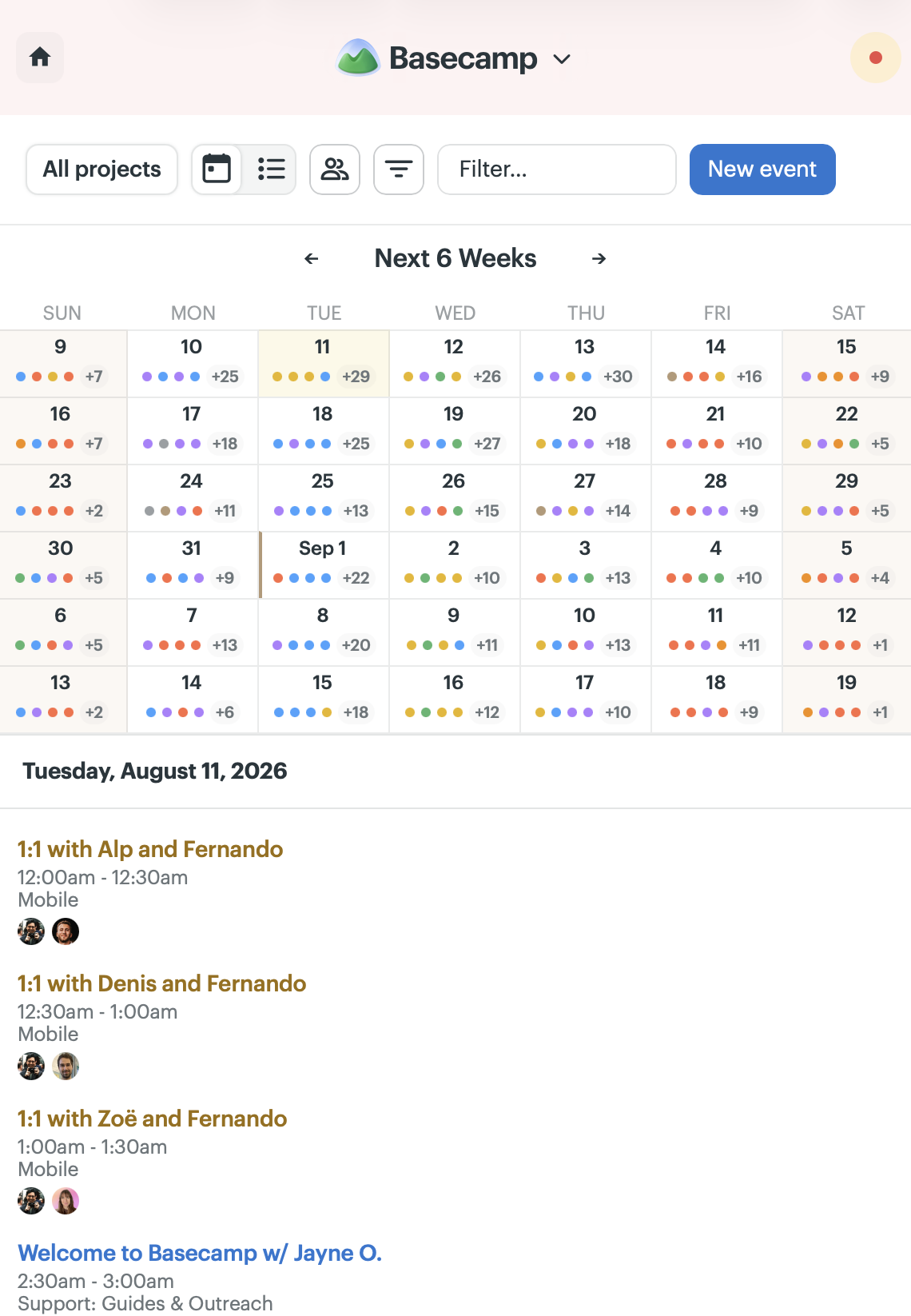
The six-week grid becomes a compact dot-grid with an agenda view underneath. The All projects sidebar comes up as a bottom sheet.
Accessibility
The calendar is structured for screen readers: each week is a region, each date a heading, with that day's events listed underneath. Everything is reachable by keyboard, including the date and time pickers in the event popup. I brought a lot of our accessibility improvements from HEY Calendar over to Basecamp 5.
—————
It'll keep getting better. Since the launch we've added a dedicated agenda view, and improved performance by migrating the calendar from JST to ERB.
Hope you like what we've shipped so far.
————— Check out Basecamp 5's Calendar. New to Basecamp? basecamp.com.